Tuesday, June 20, 2017

Laptop Recovery Software - Recover Permanently Deleted Files from Laptop

Laptop, also known as notebook, is of great portability and connectivity compared with desktop. But you may find files lost because of accidental deletion, formatting, or virus attack. One easy way to recover deleted files is through recycle bin. But if you empty recycle bin and delete files permanently, don’t be anxious, there are other solutions to settle this matter.

Recover Permanently Deleted Files from Laptop Without Software
When you find files are deleted, try some methods without software first on condition that you have created a backup before. You could do one of the two selections:
1.Search the folder or hard drive where you deleted files, and right click it.
2.Choose Restore Previous Versions.
If there is no earlier version, try next method.
1. Click Start menu and open Control Panel. Select System > System protection;
2. Choose the hard disk where deleted files located, and click Configure. Then tick the selection Restore system settings and previous versions of files, and click OK.

Using Laptop Recovery Software to Recover Permanently Deleted Files from Laptop
If next two methods don’t work, you may choose a laptop recovery software to recover deleted files. RePicvid Free Photo Recovery Software would be a lifesaver for you. It has four modules for recovery:" Photo/Graphic" (completely free), "Video/CD", "Audio/Music", "All File Types". You could select format of file and recover files from different storage devices. Just follow the easy steps to start recovering:
Step 1. Select "All File Types" and the hard drive where deleted files are located.
Step 2. Click "Advanced Settings" to choose specific format of files, which will reduce the scanning time. Then press "Scan".
Step 3. After scanning, you may preview deleted files one by one, and choose those you need to recover. Then save them to another disk.


Video demo for laptop recovery:


Methods to Reset Laptop to Factory Settings
After getting deleted files back, you need to back them up to external hard drive. There may be other problem for long-used laptop, such as slowness, crash, blue screen, etc. It would need to be reset to factory settings. Click ghost and restart laptop (note the installed software and files on desktop will disappear after ghost). If your laptop doesn’t have ghost, you could try next method:
1.Boot your laptop and click Delete, Then it will come to Bios automatically.
2.In the right panel, select Load Optimized Default with arrow keys and press Enter.
It will remind you to click Y to confirm again. Click Save&exit Step or F10 to save previous steps.

Wednesday, June 7, 2017

How to Recover Files from Formatted Pen Drive

You might come across this situation that when you unplug pen drive into computer, it pops out a windows showing: “You need to format the drive before you can use it. Do you want to format it?” Or you may accidentally format pen drive and lose all files. This is really a disaster if important files are saved there. Don’t be afraid. Here are methods on how to recover files from formatted pen drive, whether it is forcible or accidental. You may try some easy and basic solutions first:
1.Reboot your computer.
2.Safely unplug pen drive and insert it to other USB port.
3.Plug pen drive to other computer.
4.Check pen drive with anti-virus software.
If these solutions don’t work, you may attempt next two methods to recover files from formatted pen drive.

Method One: Recover Formatted Files Using CMD Command
Don’t format pen drive if it asks, and check the disk using CMD command
1.Click Start menu in the left bottom of your computer.
2.Choose “Operation”. Enter “chkdsk G:/f”. (G is the name of your pen drive)
3.Press Enter and wait for the scanning results.
If it still doesn’t work out the problem, then you can only format pen drive and try method two.
Note: chkdsk G:/f is not available for RAW files. You need to check file system of pen drive in disk management first.


Method Two: Recover Files from Formatted Pen Drive with Software
RePicvid free photo recovery is one of the best file recovery software to recover formatted pen drive, including mandatory and unexpected formatting. The biggest advantage of this program is friendly user-interface, and easy to use for those without any technical knowledge. And it could restore formatted/deleted/lost pictures, videos and audio files from various storage devices, such as computer, USB flash drive, hard drive, SD card, etc. Follow next tutorial on detailed steps of pen drive recovery procedures.

Step 1. Download and Install RePicvid Free Photo Recovery
Downloading for Windows and Mac is approachable. After that, install RePicvid according to the hints.

Step 2. Start RePicvid and Select All File Types
Double click the icon of RePicvid. There are four options of recovery for choosing. Select "All File Types".


Step 3. Scan Pen Drive for Formatted Files
For fast scanning, you may choose specific format of files. Or just skip this function if you don’t know the exact format. Click “Scan” to start looking for all files in your pen drive, and keep patient cause the scanning may take some time depending on the size and condition of pen drive. Afterwards, you can select formatted files to preview.


Step 4. Recover and Save Files from Formatted Pen Drive
You could recover particular files after previewing. Then save them to desktop or a special folder. Remember not to save them to your pen drive again.


How to Recover Deleted Files from Pen Drive

Friday, May 12, 2017

Free SD Card Recovery Software- Recover Deleted Photos from SD Card

SD Card is used widely in our daily life to expand capacity of storage device, such as Android phone, digital camera, etc. However, there is great possibility that photos are lost in some situations, such as accidental deletion, or formatting SD card by wrong operation. It is really upsetting for this problem and lost pictures even can't be found in recycle bin. Therefore, RePicvid Free Photo Recovery, a reliable SD card recovery software, is introduced to help you recover deleted or formatted pictures from SD card, as well as videos and music. It is professional and safe to restore photos from other common devices, and completely free for the whole SD card photo recovery process. You can preview results before recovering, besides it provides choosing formats of pictures for fast scanning.

Deleted photos can be restored with RePicvid because deleting operation makes location of original pictures inaccessible but not deletes contents for good. The software is able to undelete the invisible pictures if they are not overwritten by new records. So stop writing to SD card when you find pictures are deleted or lost. Then download free SD card recovery software and begin to restore photos from SD card.

Three Steps to Conduct SD Card Photo Recovery with Free SD Card Recovery Software
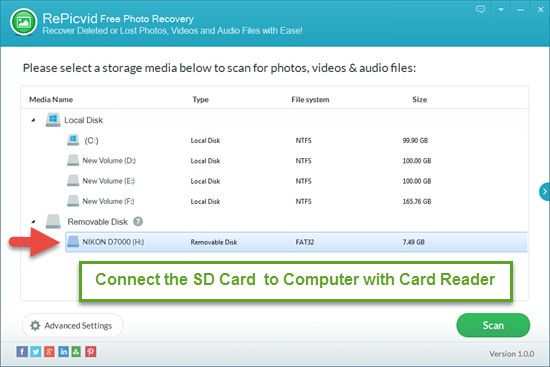
Step 1. Install RePicvid free photo recovery and start it up; Connect SD card to computer with card reader. And then choose photo/graphic mode; Select a storage disk represented by the SD card.

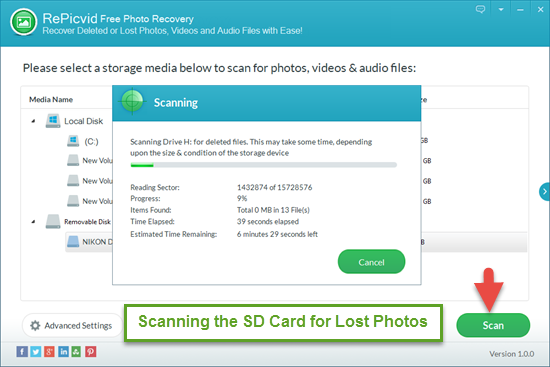
Step 2. Start to scan SD card for lost pictures; Click "Advanced Settings" to select formats of photos like jpg, png, gif, etc.

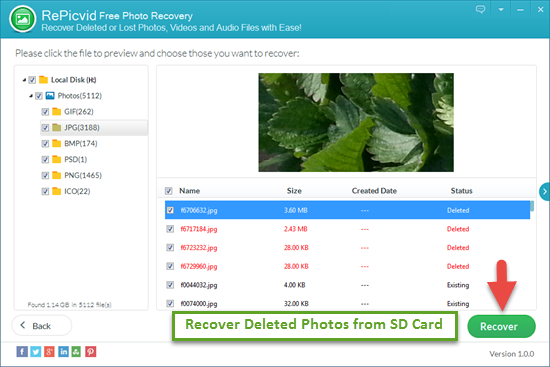
Step 3When scanning is completed, preview images and choose what you want to recover. Finally, save recovered pictures to another folder.

SD Card Recovery Software Supported Storage Devices and File Formats
Digital camera, Digital camcorder, Personal digital assistant, Mobile phone, Multimedia player etc.
  • Image: GIF, JPG, BMP, TIF, JPEG, TGA, EXIF, etc.
  • Video: MOV, MKV, AVI, MPEG, M2TS, MP4, etc.
  • Audio: MP3, WAV, MID, AAC, AIF, etc.
Suggestions for SD Card Photo Recovery
1. Stop saving new pictures and videos to SD card if you want to retrieve deleted photos successfully. Once they are overwritten, you will never get them back.
2. Classify and clear up pictures regularly, thus it will help you avoid lost photos caused by accidental deletion.
3. Know more about SD card photo recovery, then choose a reliable SD card recovery software to restore deleted/formatted images.

Sunday, September 18, 2016

Gihosoft Free Photo Recovery - Recover Deleted Photos from Internal/External Hard Drive for Free

Internal hard drive and external hard drive are both available storage devices to restore pictures. Their large storage effectively avoids the limitation of digital camera and mobile phone. However, you still may lost photos from hard drive due to accidental deletion, formatting and other reasons. Photos lost from internal hard drive can still be recovered in recycle bin,while those lost from the external one need a recovery software to retrieve them. Gihosoft Free Photo Recovery software is researched by our team to solve this problem.

Best Freeware Photo Recovery Software

Gihosoft Free Photo Recovery, is the best yet free one. It has powerful functions, not only supports different formats of recovering pictures, but also supports music files and video recovery. Users can easily retrieve their deleted photos from formatted, dead or crashed internal and external hard drive. Humanized design, simple operation process, safe recovering environment and advanced technology. All of them contribute to a success recovery.

Supports windows XP, 2000, 7, 8, 7, 8.1, Vista and 10. Moreover supports different hard disk brands like Toshiba, Kingston, Seagate, SanDisk, Hitachi and many others.
Note: You should stop using the hard drive disk to avoid photos being overwritten. Besides, please close the other running programs on computer in case they produce new data on the HDD.
Step 1: Select the internal/external hard drive where photos were deleted 

Step 2: Scan lost photos on internal/external hard drive

Step 3: Preview and retrieve deleted photos from external/internal hard drive


This free photo recovery software can  recover your deleted photos effectively by powerful features below:
Works for various data loss scenarios
Recover  lost photos, videos from emptied recyvle bin, formatted or damaged hard drive, software crash, virus infection, lost partition and other unknown scenarios.
Supports all kinds of storage devices
This software is compatible with all storage medias, such as USB flash drives, memory card, SD card, microSD, miniSD, CF card, XD picture card, etc.
Recover deleted photos in a safe environment
Every step is operated strictly according to your instruction. Scanning storage device via read-only. No rubbish and advertisement will be produced during the whole process.
Advanced recovery technology
“Advanced Settings” option can preview specified photo types to scan, thus to boost scanning time. “Super Toolkit” can support more devices. Both of them contribute to a effective recovery.
Support a full range of file types
Images: JPG/JPEG, TIFF/TIF, PNG, ICO, BMP, GIF, PSD, CRW, CR2, CDR, NEF, ORF, RAF, SR2, MRW, DCR, WMF, NEF, EXIF, RAW, SVG, HDRI, TGA, EXIF, FPX, CAM, etc. 
Video: AVI, MOV, MP4, M4V, 3GP, 3G2, WMV, ASF, FLV, SWF, MPG/MPEG, RM/RMVB, MKV, MXF.
Music: AIF/AIFF, M4A, MP3, WAV, WMA, APE, MID/MIDI, OGG, AAC, etc.